
On a WooCommerce site, wp_actionscheduler_actions is very often the largest table in the database. WooCommerce own engineering team describes the Action Scheduler tables as some of the busiest in many WooCommerce databases, so if yours has grown alarming, you are in normal company.
It is also the one table in this series you should not empty with a raw truncate, and the reason is worth two minutes of your time.
What Is the wp_actionscheduler_actions Table?
Action Scheduler is the background job queue that WooCommerce and many other plugins use to run work outside the page request: subscription renewals, order syncs, emails, imports, webhooks. Since Action Scheduler 3.0 it stores that queue in its own custom tables prefixed actionscheduler_, rather than in a custom post type as older versions did.
Two tables do the heavy lifting. wp_actionscheduler_actions holds the actions themselves along with their status, and wp_actionscheduler_logs holds the log entries attached to them. You can see the same data in the admin under Tools, then Scheduled Actions, or under WooCommerce, then Status, then Scheduled Actions if WooCommerce is installed.
Why It Grows So Large
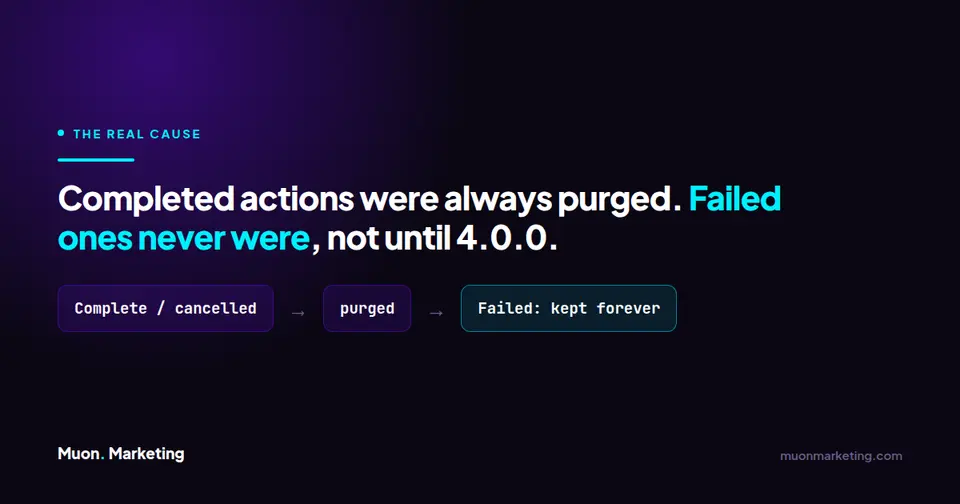
Here is the part most guides get wrong. Action Scheduler has always purged completed and cancelled actions. The table does not balloon because nothing was ever cleaned up.
It balloons because, before Action Scheduler 4.0.0, failed actions were never cleared at all. They accumulated indefinitely. On a busy store with a flaky integration quietly failing a few hundred times a day, that is millions of rows nobody asked for.
The old cleanup design made it worse. Deletion of old actions ran inline on every queue batch and processed only a small slice each time, so on high volume stores the tables could grow faster than cleanup could manage.
What Changed in Action Scheduler 4.0.0
Action Scheduler 4.0.0, announced by WooCommerce in June 2026, changed both halves of that problem.
| Before 4.0.0 | From 4.0.0 | |
|---|---|---|
| Failed actions | Kept indefinitely. The main cause of runaway tables. | Removed once older than three months. |
| When cleanup runs | Inline on every queue batch, a small slice at a time. | A dedicated daily job at 3am site time. |
| How much it deletes | A small slice per batch, easily outpaced by growth. | Larger batches, a minimum of 250 per run. |
| Completed and cancelled | Always purged. | Always purged. Unchanged. |
If your table is enormous and you have only recently updated, some of this will resolve itself. Give the daily job time to work through the backlog before you reach for phpMyAdmin. If the backlog never moves at all, check the scheduler underneath it: what to do when WP-Cron is not running covers the two halves of that fix.
Three filters control the new behaviour if you need to tune it:
action_scheduler_retention_period_for_failedchanges how long failed actions are kept.action_scheduler_enable_failed_action_cleanupdisables failed action cleanup entirely.action_scheduler_cleanup_batch_sizeadjusts how many rows each run deletes, for hosts that cannot take the larger batches.
Why You Should Not Truncate This Table
This is the important difference between wp_actionscheduler_actions and the log tables people clean up alongside it.
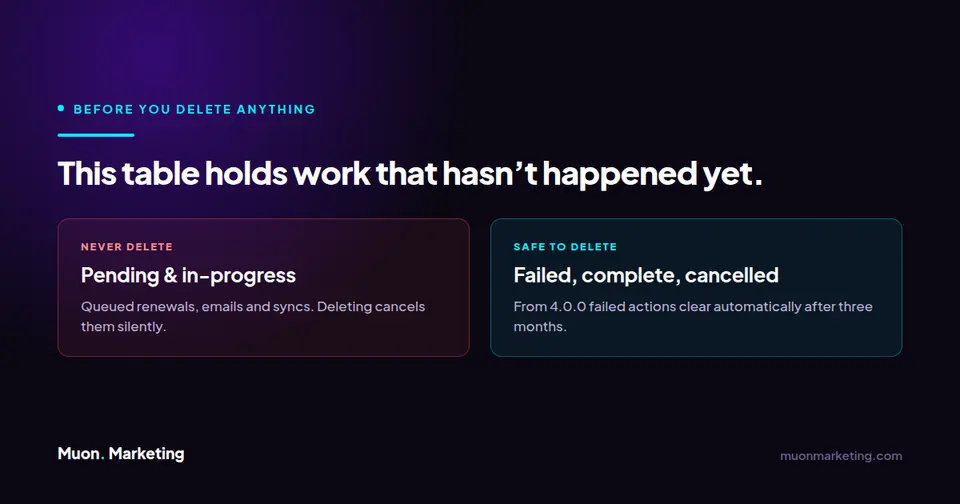
A log table records what already happened. This table records what has not happened yet. Pending actions are live, queued work: the renewal that has not run, the email that has not sent, the sync that is waiting its turn. Truncate the table and that work does not get rescheduled. It is simply gone, silently, and on a subscription store that is a billing problem rather than a database one.
| Status | What the row represents | Safe to delete? |
|---|---|---|
| Pending | Work that is queued and has not run yet. | No. Deleting this cancels real work with no warning. |
| In-progress | Work that is running right now. | No. Leave it alone. |
| Failed | Work that ran and errored. | Yes, and from 4.0.0 this now happens automatically after three months. |
| Complete / Cancelled | Finished or abandoned work. | Yes, and Action Scheduler has always purged these itself. |
How to Clean It Up Safely
In order of preference:
1. Update Action Scheduler first. On 4.0.0 or later the failed action backlog clears itself, which is the cause in the large majority of cases. Updating WooCommerce usually brings the newer version with it.
2. Fix whatever is failing. A table full of failed actions is a symptom. Open Tools, then Scheduled Actions, filter to failed, and look at the hook name. It is usually one integration failing over and over. Clearing the rows without fixing the hook just refills the table.
3. Delete by status, never wholesale. If you must intervene manually, back up the database, then delete only rows with a failed, complete or cancelled status. Never touch pending or in-progress.
4. Remember the logs table. wp_actionscheduler_logs holds entries tied to the actions and is frequently larger than the actions table itself. Whatever you do to one, account for the other.
Not sure which table is your problem? Start with how to find the one table slowing your WordPress database, which covers all of them and the question to ask before deleting anything.
Related Database Tables
If you are working through an oversized WordPress database, this is rarely the only large table. The Wordfence pair are the usual companions, and the advice for them is different because they genuinely are logs: see what the wp_wfHits table is and how to shrink it and what wffilemods is and whether you can empty it. If you run Yoast, the wp_yoast_indexable table is a third case again: a cache that has to be rebuilt rather than emptied. Row count is not the only way a table costs you, either: bloated wp_options autoload data is read on every single page request.
On a WooCommerce store, the sessions table fails the same way and for the same reason. The general rule across all of them: work out whether the table is a log, a cache, or a queue before you delete anything. Only the first is safe to empty on a whim.
wp_actionscheduler_actions FAQs
What is the wp_actionscheduler_actions table?
It is the queue table for Action Scheduler, the background job system WooCommerce and many other plugins use to run work outside the page request. It holds each scheduled action and its status. Since Action Scheduler 3.0 this lives in custom tables prefixed actionscheduler_ rather than in a custom post type.
Can I truncate the wp_actionscheduler_actions table?
You should not. Unlike a log table it contains pending actions, which are real queued work such as subscription renewals, emails and syncs that have not run yet. Truncating deletes that work without rescheduling it. Delete by status instead, and only failed, complete or cancelled rows.
Why is my Action Scheduler table so big?
Almost always because of failed actions. Action Scheduler has always purged completed and cancelled actions, but before version 4.0.0 failed actions were kept indefinitely. One integration failing repeatedly can generate millions of rows over time.
What changed in Action Scheduler 4.0.0?
Failed actions are now removed once they are older than three months, and cleanup moved from an inline slice on every queue batch to a dedicated daily job at 3am site time that deletes in larger batches of at least 250. Both changes target tables that previously grew faster than cleanup could manage.
Where do I view scheduled actions in WordPress?
Under Tools then Scheduled Actions, or under WooCommerce then Status then Scheduled Actions if WooCommerce is installed. From there you can filter by status, sort by hook name or scheduled date, view the log entries for an action, and run a pending action manually.
What about the wp_actionscheduler_logs table?
It stores the log entries attached to each action and is often larger than the actions table itself. It is a genuine log, so it is safer to clear, but treat the two together since the entries relate to the actions they describe.
If a table like this got large enough to find, something has probably been failing quietly for a while. Catching that is part of what we do under a maintenance plan, and it is part of what we cover under managed WordPress care.