
Most advice on this topic tells you to install an optimisation plugin and click a button. That is not wrong, but it treats every database the same, and it almost never explains the actual problem.
A slow WordPress database is usually one specific table that grew without limit, not the database as a whole. Finding which one takes about five minutes and tells you far more than any plugin summary.
Ask One Question First: Log, Cache, Queue or Live State?
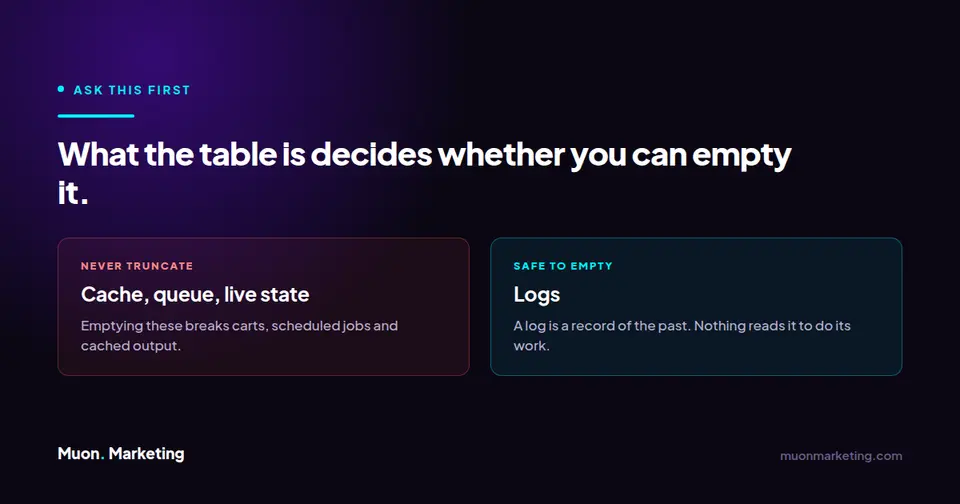
This is the single most useful idea in database maintenance, and almost nobody says it out loud. Before you delete anything, work out what kind of thing the table holds. There are four kinds, and the correct action is different for each.
| Type | What it holds | Correct action | Example |
|---|---|---|---|
| Log | A record of what already happened | Safe to empty. You lose history, nothing else | Wordfence traffic and file-change logs |
| Cache | Precomputed data the site reads live | Rebuild, do not truncate. Emptying it degrades output until it refills | Yoast SEO indexables |
| Queue | Work that has not run yet | Delete only finished or failed rows | Action Scheduler |
| Live state | What someone is doing right now | Do not touch. Delete only what has expired | WooCommerce sessions |
The Tables That Actually Cause This
In practice the same handful of tables are responsible almost every time. Each of these has a specific cause and a specific fix:
| Table | Plugin | Why it grows |
|---|---|---|
wp_wfHits | Wordfence | Live Traffic set to log everything, so every bot request writes a row |
wp_wfFileMods | Wordfence | Scan scope too wide, so every scanned file produces a record |
wp_yoast_indexable | Yoast SEO | One row per post, page, term, author and archive, plus rows orphaned by deletions |
wp_actionscheduler_actions | WooCommerce | Failed actions were never purged before Action Scheduler 4.0.0 |
wp_woocommerce_sessions | WooCommerce | The cleanup event stopped running, so expired sessions accumulate |
wp_options | WordPress core | Autoloaded options load on every single request, and plugins leave theirs behind after removal |
The last one deserves a note because it behaves differently from the rest. Options marked to autoload are read on every page request, so a bloated autoload set slows the whole site rather than one feature. Uninstalled plugins routinely leave their options behind, still autoloading, years later. The audit query is in how to find and fix bloated wp_options autoload rows, which also covers the five autoload values WordPress 6.6 introduced.

How to Find Your Actual Problem in Five Minutes
- Open phpMyAdmin or your host database tool and sort tables by size. Do not skip this. The answer is nearly always visible in the first three rows.
- Identify what the largest table belongs to, using the table above. The prefix tells you the plugin.
- Classify it: log, cache, queue or live state. That decides what you are allowed to do.
- Fix the cause before clearing the table. A setting left unchanged refills it within weeks.
- Back up, then clear only what is safe for that type.
If your largest table is not on the list, the same method still works. Find the owner, classify it, fix the cause. The common exception is wp_postmeta, which is supposed to be your largest table, so classify it before you start deleting rows.
What Optimisation Plugins Do and Do Not Do
Database optimisation plugins are useful for the routine housekeeping: clearing post revisions, expired transients, spam comments and orphaned metadata. Run one on a schedule and it will keep that clutter down.
What they will not do is tell you that Wordfence is logging every bot request, or that a WooCommerce cleanup event stopped firing four months ago. Those are settings problems, and a plugin that deletes rows will keep deleting the same rows forever without ever mentioning why they keep coming back.
For what it is worth, we keep our own stack deliberately small and publish all of it, affiliate links and all, on our tools page. Caching and hosting do more for perceived speed than database housekeeping ever will, which is why those two get the budget. One genuine warning: several of these plugins offer to optimise or repair tables in ways that are not always safe on live sites, and some will happily empty a table that is not a log. Take a backup you have actually restored before letting any tool operate on the database.
Read the Detail on Each Table
Each of these covers one table properly, including the exact settings that control it:
| If your biggest table is | Read |
|---|---|
wp_wfHits | What the wp_wfHits table is and how to shrink it |
wp_wfFileMods | What wffilemods is and whether you can empty it |
wp_yoast_indexable | Why you should rebuild rather than truncate Yoast indexables |
wp_actionscheduler_actions | Why the Action Scheduler table gets huge |
wp_woocommerce_sessions | Why the WooCommerce sessions table reaches gigabytes |
Running low on files rather than space is a related problem with a different fix: how to reduce inode usage.
Keeping It From Coming Back
Database size is a lagging indicator. It grows for months before anyone notices, which is why it belongs on a schedule rather than in a panic. A quarterly check of the largest tables catches every problem on this page long before it affects a visitor.
That check is one line on our website maintenance checklist, and it is part of what managed WordPress care covers.
WordPress Database Optimization FAQs
What makes a WordPress database slow?
Usually one specific table that has grown without limit, rather than the database as a whole. The most common culprits are security logs, SEO caches, scheduled task queues, session tables and autoloaded options in wp_options. Sorting tables by size in phpMyAdmin normally reveals the answer in the first three rows.
Is it safe to delete rows from a WordPress database table?
It depends what the table holds. A log is safe to empty because it only records what already happened. A cache should be rebuilt rather than truncated. A queue holds work that has not run yet, so delete only finished or failed rows. Live state, such as WooCommerce sessions, should not be touched except for expired rows. Always back up first.
Do WordPress database optimization plugins work?
They are good at routine housekeeping such as post revisions, expired transients, spam comments and orphaned metadata. They will not tell you that a plugin setting is causing a table to refill, so they treat the symptom rather than the cause. Some also offer repair operations that are not always safe on a live site.
What is autoload in wp_options and why does it matter?
Options marked to autoload are loaded on every single page request. That means bloat there slows the entire site rather than one feature. Plugins commonly leave their options behind when uninstalled, still autoloading, long after the plugin itself is gone.
How often should I check my WordPress database?
Quarterly is enough for most sites. Database size is a lagging indicator that grows quietly for months, so a scheduled check catches problems long before a visitor notices anything. Sort tables by size and confirm nothing has grown out of proportion to your content.
My site got slow and nothing changed. Why?
That description almost always points at database growth, because it happens gradually with no event to point at. Check the largest tables first. A log or session table that nothing is purging is the most common single cause.
If sorting your tables by size produced a number that surprised you, that is worth acting on before it becomes a slow checkout. Tell us about your site and we will tell you what is actually going on in there.