
The message, in full, reads something like this:
Fatal error: Allowed memory size of 134217728 bytes exhausted
(tried to allocate 20480 bytes) in /wp-includes/wp-db.php on line 2056
Or you get a white screen with nothing on it at all, because the host has display_errors switched off and the message went into a log you have not found yet.
Most advice jumps straight to raising the limit. That works often enough to be popular, and it is still the wrong first move, because the message already tells you which of two quite different problems you have, and raising the limit only fixes one of them.
Read the second number
There are two figures in that error and they are not the same kind of thing.
The first, Allowed memory size of 134217728 bytes, is the ceiling the request was working under. Divide by 1,048,576 to get megabytes: 134217728 is 128M.
The second, tried to allocate 20480 bytes, is what the script was asking for at the instant it ran out. That is 20KB. The script did not fail because it wanted 20KB. It failed because it had already spent 128MB and had nothing left for even a trivial request.
| Tried to allocate | What that means | Where to look |
|---|---|---|
| A few KB (e.g. 20480) | Gradual exhaustion. Something spent the whole budget in small pieces | A loop over too many rows, an unbounded query, a plugin processing everything in one pass |
| Hundreds of KB to a few MB | A moderately large object part way through the request | Image handling, an import, a large serialized option |
| Tens or hundreds of MB at once | One allocation asked for more than the entire limit | A big file read whole, an export, a query with posts_per_page => -1 |
Raising the limit fixes the third row cleanly. On the first row it buys you time and nothing else: whatever consumed 128MB will consume 256MB too, just a little more slowly, and you will be back here in a month with a bigger number in the error.

Three limits, and only one of them is enforced
WordPress does not have a memory limit so much as an opinion about three of them.
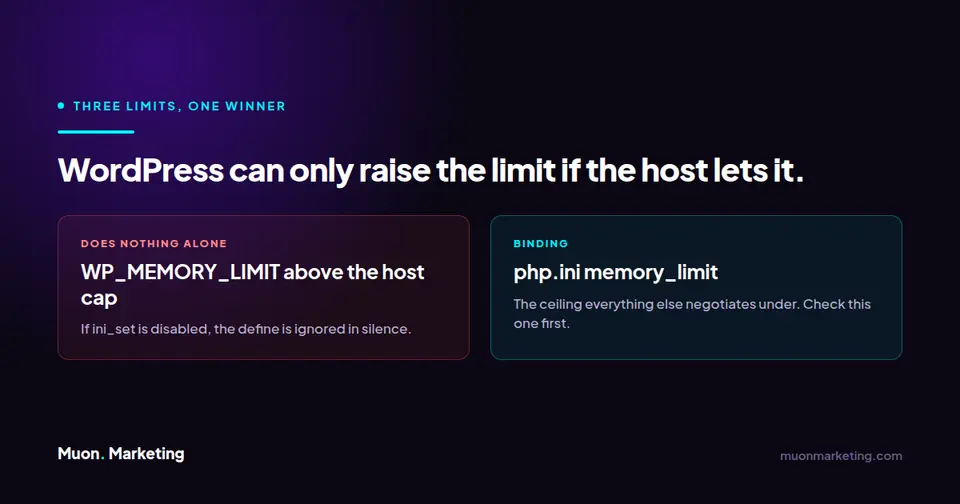
memory_limitin php.ini: the host’s ceiling. This is the one PHP actually enforces, and the only number that stops a request.WP_MEMORY_LIMIT: what WordPress asks for on the front end. Defaults to 40M on a single site and 64M on multisite.WP_MAX_MEMORY_LIMIT: what it asks for in the admin and during memory-hungry work such as image processing. Defaults to 256M.
Two details do most of the damage when people do not know them.
wp_raise_memory_limit() only ever raises. It compares what it wants against what PHP is currently set to and applies it only if it is higher. So define( 'WP_MEMORY_LIMIT', '64M' ) on a host already serving 256M does nothing at all, and, contrary to a common worry, does not drag you down to 64M.
WordPress raises the limit by calling ini_set(), and plenty of shared hosts disable that. When they do, your define is ignored in silence. No warning, no log line, no clue. If you have set WP_MEMORY_LIMIT and the error did not change, this is usually why.
Raising it properly
In wp-config.php, above the /* That's all, stop editing! */ line:
define( 'WP_MEMORY_LIMIT', '256M' );
define( 'WP_MAX_MEMORY_LIMIT', '512M' );
Then verify rather than assume. Tools → Site Health → Info → Server reports the PHP memory limit actually in force. If that figure has not moved, your define was ignored and the fix is a conversation with your host, not another edit to wp-config.
One more knob worth knowing: scheduled work gets its own filter. wp_raise_memory_limit( 'cron' ) exposes cron_memory_limit, so a background job can be given more headroom than a page view without raising the ceiling for every visitor.
Finding what is actually eating it
The error names a file and a line. That is where the memory ran out, not where it went. It is usually the last innocent allocation before the wall, which is why it so often points at wp-db.php. Useful for confirming the failure, useless for finding the cause.
For the cause, the usual suspects on a WordPress site are unbounded queries, image processing on very large uploads, imports and exports that build the whole payload in memory, and background jobs that try to do everything in a single pass. That last one overlaps with a lot of what we have written about elsewhere: a Wordfence scan collecting hundreds of thousands of URLs in one go is a memory problem before it is a disk problem, and anything running under WP-Cron inherits whatever limit that request was given.
It is also worth checking the database side before assuming the code is at fault. A query returning far more rows than anyone intended is the single most common way a WordPress request quietly consumes 128MB, and that often traces back to how much is sitting in wp_postmeta or to what is being autoloaded on every request.
Watching for this before it becomes a white screen is part of managed WordPress care, because by the time a visitor sees the error, it has usually been happening intermittently for weeks.
Frequently asked questions
How much memory should WordPress have?
WordPress core asks for 40M on a single site and 64M on multisite, which tells you how little core itself needs. Real sites run on more because of what is installed on top: 256M is a comfortable working figure for a site with a page builder, WooCommerce or a security plugin, and 512M is generous rather than necessary. If you need more than that for an ordinary page view, the number is not the problem.
I set WP_MEMORY_LIMIT and nothing changed. Why?
Almost always because the host disabled ini_set(), which is how WordPress applies the value, and the attempt fails silently. The other possibility is that the limit was already higher than what you set, in which case WordPress ignores it by design because wp_raise_memory_limit() only ever raises. Check Tools, Site Health, Info, Server to see the limit actually in force.
Is a higher memory limit bad for performance?
Not in itself. The limit is a ceiling, not an allocation, so raising it does not make any request use more memory than it needs. What it does change is your worst case: with a higher ceiling, a runaway request can consume more before PHP stops it, which matters when several are running at once on a server with finite RAM.
Does this error mean my server has run out of RAM?
No, and this trips people up constantly. memory_limit is a per-process cap that PHP enforces on itself. A server with 30GB of free RAM will still throw this error the moment one request passes a 128M cap. The two are unrelated, which is why the fix is usually configuration rather than a bigger server.
Why does it say it tried to allocate only 20480 bytes?
Because that was simply the next thing it asked for. The failure is that the budget was already spent, not that 20KB was too much. A very small allocation figure is actually informative: it tells you memory was consumed gradually rather than by one large operation, which points at a loop or an unbounded query rather than at an import or an image.
The error only happens in wp-admin. What does that mean?
Usually that the admin is doing more work per request than the front end does, not that the admin has less memory available. WordPress raises the limit to WP_MAX_MEMORY_LIMIT in the admin, so it normally has more room. If it still fails there, look at what runs on that particular screen: bulk operations, plugin dashboards and media processing are the common ones.